![APCO Holdings Logo_CMYK (002)-1.png]](https://knowledgebase.apcoholdings.com/hs-fs/hubfs/APCO%20Holdings%20Logo_CMYK%20(002)-1.png?height=40&name=APCO%20Holdings%20Logo_CMYK%20(002)-1.png)
These articles serve as a comprehensive guide and quick reference for navigating HubSpot. If you're looking for articles tailored to your specific role, check out the Categories available on the Knowledge Base home page.
Note: You can only change your email address; it is not possible to change email addresses for other users.
Please note:
- You can't edit your email address unless you are logged into your HubSpot account.
- If it asks for a password during your reset process, use your HubSpot login password.
- If your only method of logging into HubSpot has been through a Google account, you must first reset your password before you can update your HubSpot user email address.
- You cannot modify your email address to match that of an existing HubSpot user, even if they do not have access to your account, unless the user has been permanently deleted.
- If you have SSO turned on, you cannot change your email address or add an email address. To add or update an email address, temporarily disable SSO first.
To change your HubSpot email address follow the below instructions:
-
- In your HubSpot account, click on your account name in the top right corner, then click Profile & Preferences.
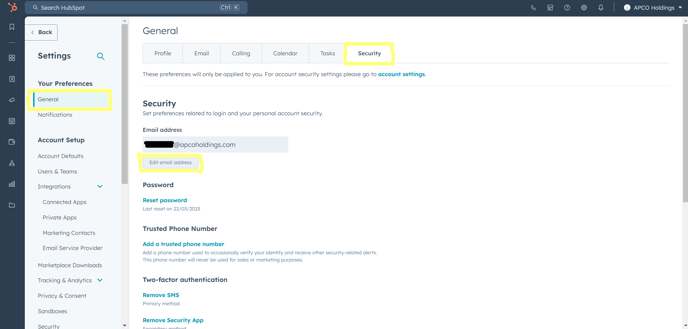
- In the left sidebar menu, navigate to General > Security.
- Navigate to the Email section and click on Edit email address.
-
- In the dialog box, enter your new email address and your HubSpot account password.
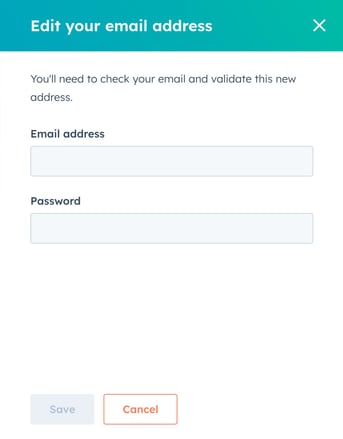
- In the dialog box, enter your new email address and your HubSpot account password.
-
- Click on Save, Your new email address will now require validation.
- You'll receive an email in your new email address inbox. In the email, click Confirm your email address to validate your new email address.

-
- If prompted to log in again after confirming your email address, simply enter your original login credentials to access your account.
- If prompted to log in again after confirming your email address, simply enter your original login credentials to access your account.