![APCO Holdings Logo_CMYK (002)-1.png]](https://knowledgebase.apcoholdings.com/hs-fs/hubfs/APCO%20Holdings%20Logo_CMYK%20(002)-1.png?height=40&name=APCO%20Holdings%20Logo_CMYK%20(002)-1.png)
Please note: The HubSpot mobile app is compatible with iOS devices running iOS 16 or newer, and Android devices running Android 10 and above. Make sure to have the latest app version installed - 4.34.1 or higher on iOS, and 2.217.0 or newer on Android. You can download the app for free from the App Store Connect and Google Play Store. While it is possible to run the app on Macs with Apple Silicon, this is not officially supported. For security purposes, the HubSpot mobile app does not work on jailbroken iOS devices or rooted Android devices.
Install the HubSpot Mobile App (iOS)
- Open the App Store on your device.
- Search for the HubSpot CRM App, then tap "Get" to Download and Install the app.
- Tap "Open" from the Store or open the HubSpot app on your device.
- Once you open the app, "HubSpot" Would Like to Send You notifications prompt will appear, to receive notifications from HubSpot, be sure to enable push notifications.
- Enter your HubSpot credentials and tap Log In. If you're a user in multiple HubSpot accounts, you'll be prompted to select the account you want to access.
Install the HubSpot Mobile App (Android)
Please note: The HubSpot mobile app can only be installed using the Google Play Store on an Android device. Installation from external sites or Android application packages (APKs) is not supported.
- Open Google Play Store on your android device.
- Search for the HubSpot CRM: Grow better app, then tap Install to download and install the app.
- Tap Open to open the HubSpot app on your device.
- Once you open the app, "Allow HubSpot to send you notifications?" prompt will appear, to receive notifications from HubSpot, be sure to enable push notifications.
- Enter your HubSpot credentials and tap Log in. If you're a user in multiple HubSpot accounts, you'll be prompted to select which account you want to access.
Log in to the HubSpot Mobile App
If you have configured HubSpot in your OKTA dashboard, simply click on "Log in with SSO" on the Login Page. If not, enter your HubSpot credentials. You may be asked to input a code from your 2FA settings for added security.
On the next page, select the environment you're working in (instead of any Sandbox). The correct option should read "APCO Holdings".
Manage Your Mobile App Settings
In your app settings, you can manage your Account settings and Preferences, provide feedback on the mobile app, and get help from HubSpot Support.
- To access your settings, tap on Menu icon in the bottom navigation menu. Then, navigate to the bottom of the left sidebar and tap the
 settings icon.
- On the Settings screen, you can customize your keyboard, calling settings, notifications, and Dark Mode settings.
Get the latest version of the HubSpot app
You can automate app updates in your device settings, either for all your apps or specifically for the HubSpot mobile app. This is recommended to ensure you do not miss any key updates.
Instructions for iOS
There are two ways to update the HubSpot app, either automatically or manually:
- To automatically update your apps:
- On your iPhone, click Settings > App Store > App Updates. Tap to toggle the App Updates switch on.

- On your iPhone, click Settings > App Store > App Updates. Tap to toggle the App Updates switch on.
- To manually update the HubSpot app:
- Open the App Store.
- Tap on your profile icon at the top of your screen.
- Scroll to see pending updates and release notes. Tap Update next to the HubSpot app to update it to the latest version.
Instructions for Android
- To automatically update your apps:
- On your device, go to Google Play Store > tap your Profile icon > Settings > Network preferences > Auto-update apps.
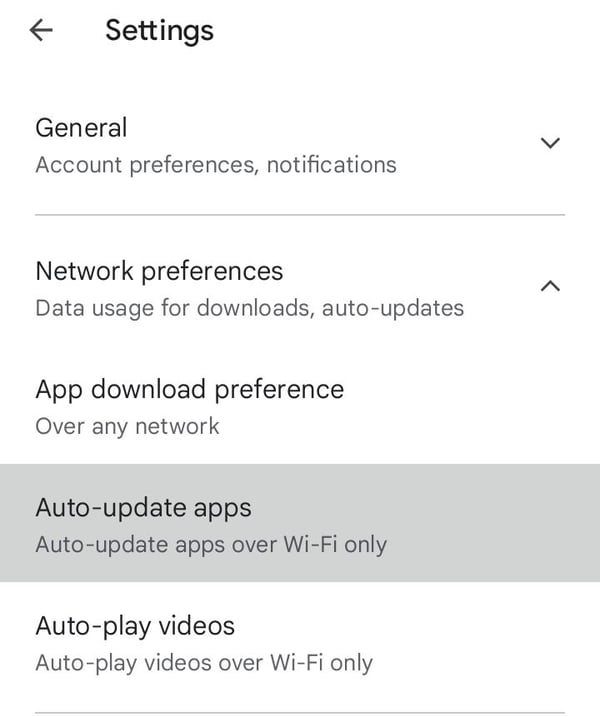
- On your device, go to Google Play Store > tap your Profile icon > Settings > Network preferences > Auto-update apps.
- To manually update the HubSpot app:
- Open the Google Play Store.
- Tap on the profile icon located in the upper-right corner of your screen.
- Click on "Manage apps and device" and select "Updates available".
- Look for HubSpot app and tap Update next to the HubSpot app.
|
|