![APCO Holdings Logo_CMYK (002)-1.png]](https://knowledgebase.apcoholdings.com/hs-fs/hubfs/APCO%20Holdings%20Logo_CMYK%20(002)-1.png?height=40&name=APCO%20Holdings%20Logo_CMYK%20(002)-1.png)
How to Login
HubSpot Web Login: https://app.hubspot.com/login
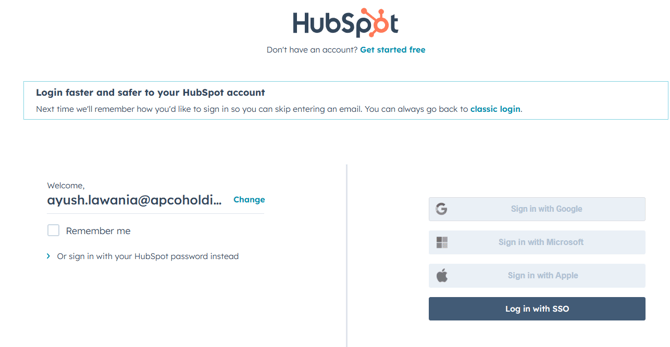
APCO Holdings SSO Okta Log In

If you do not see HubSpot as an option in your Okta, you will need to request this from the IT HelpDesk.
Company
How to Create a Company record
-
In your HubSpot account, navigate to CRM > Companies from the left sidebar navigation in HubSpot.
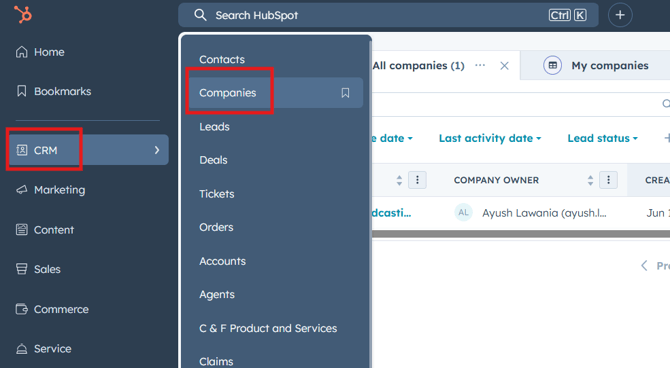
-
Click on “Add Companies” located at the top right hand side and select “Create new”.
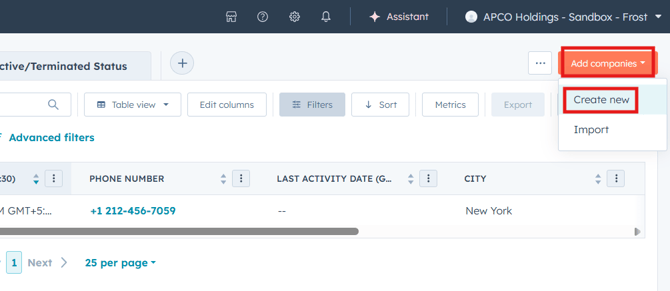
-
A form will pop up over the right side of your window where you can enter Company's information.
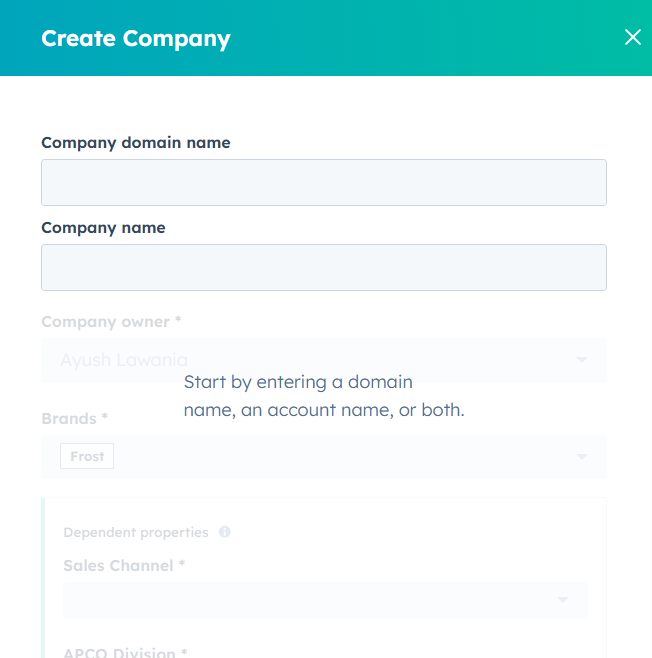
-
In the "Company Name" field, enter the name. Once entered, additional fields will become available. "Brand" will default to "Frost" Selecting this will display all related fields in the form.
Note: If the Business Unit is not automatically set to 'Frost', follow the instructions in this link.
View this Scribe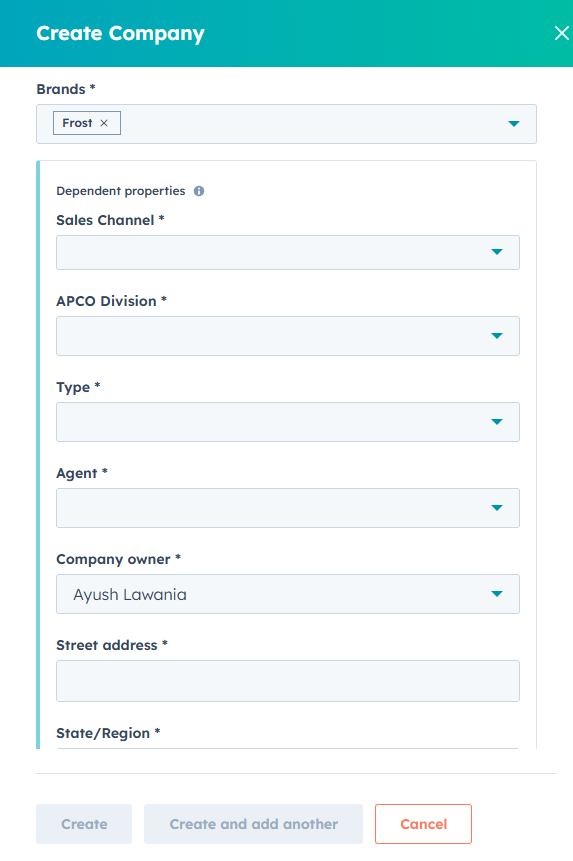
-
Fill out the asterix marked fields to create the company, these are mandatory to create the new company record.
-
Sales Channel.
-
APCO Division.
-
Type.
-
Agent.
-
Street Address.
-
State/Region.
-
City.
-
Postal code.
-
-
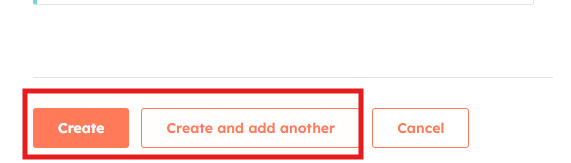
Click on “Create” to create the company record and Click on “Create and add another” to add more Company record.
-
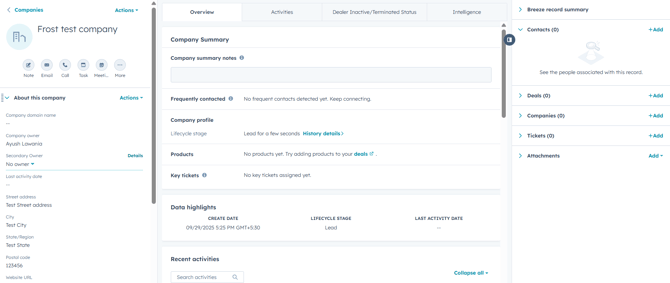
After creating the company, a new window will open which contains the company information.
-
To update details, click on the field to enable edit mode and update the information, once details are updated click outside the field and changes will be saved automatically.
-
How to Create Activities
In HubSpot, certain activities are logged on records automatically, but you can also manually create activities that occurred outside of HubSpot.
Activities include:
-
Notes
-
Tasks
Record page were we can log activities include:
-
Contacts
-
Companies
-
Deals
From the Record's Page
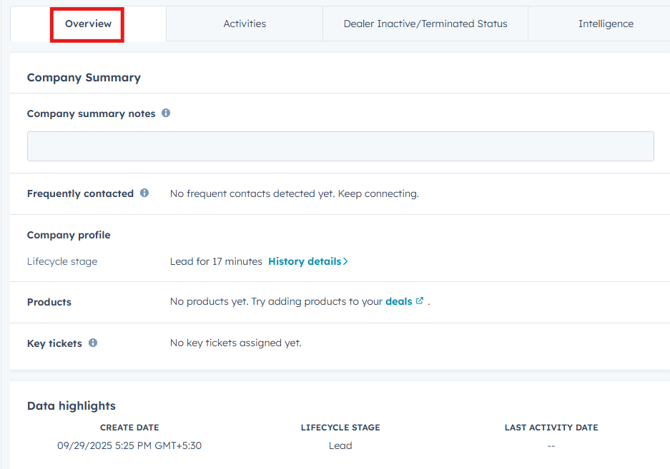
Activities are organized in the central section of the record's page, displaying all activities initially. You can further explore specific activities by clicking on tabs such as Notes, Emails, Calls, Tasks, and Meetings. To get a quick overview of recent activities and deals related to a company, click on the "Overview" tab at the top of the page.
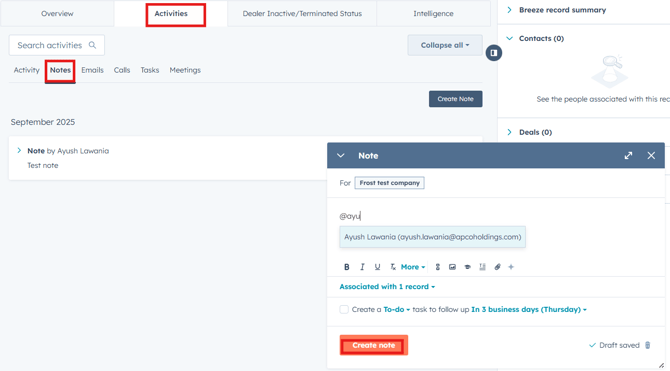
Create a Note
Utilize Notes for internal communication, whether it be tagging (Use "@" to tag your teammates) other users or to log information on a record.
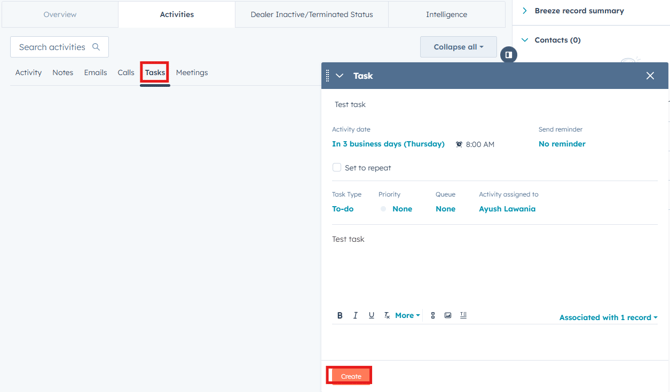
Create a Task
A lot of Tasks will be automatically assigned to you, but you can set your own by clicking the "Create Task" button which prompts you to schedule a time to send an email, call, or just check on the record or assign it to a Queue, if necessary.
How to add Associations from the Company record
Purpose: To link an existing company or a new company to the primary company record.
-
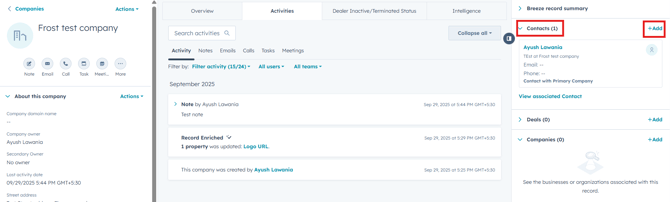
In the right panel of the Record's page, one can see expandable lists of Associated Records and a link to "+Add" new Associations.
-
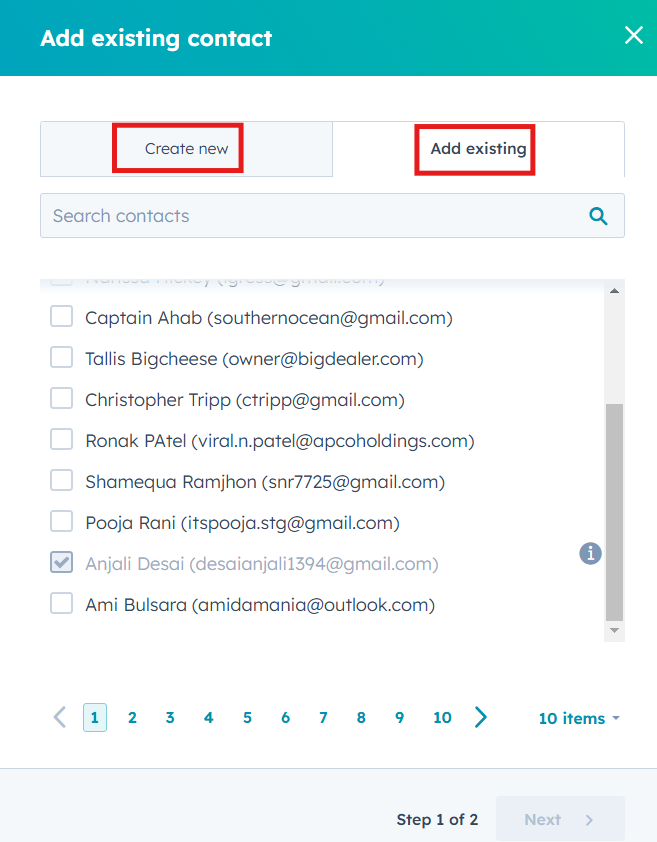
Clicking "+Add" under one of these sections prompts you to either create a New Associated Record or Add the Company's Association to an Existing Record.
-
-
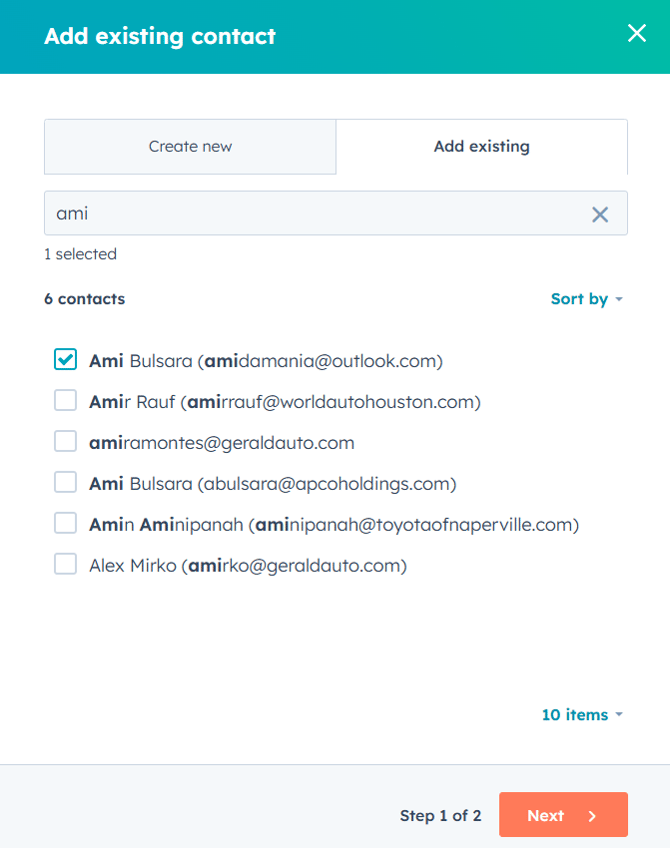
Search for existing company using the search box and select the company you want to associate and click on “Next”.
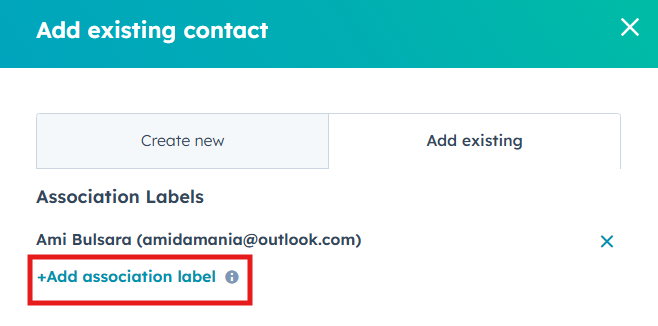
Click on “Add association label” to label the company record.
Search for label from the label dropdown and click on “Save”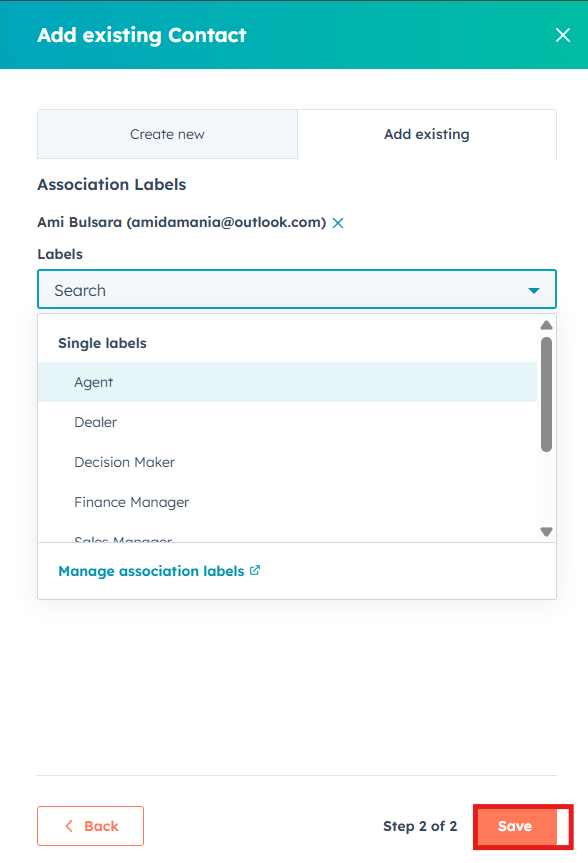
-
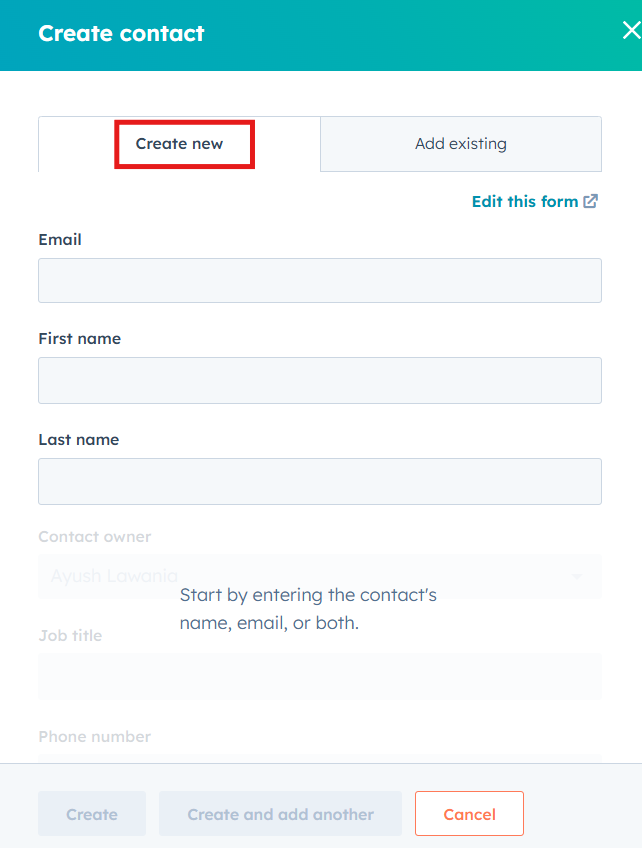
To add a new Company, click on create new and fill out the form as described in above section. (How to Create a Company record)
How to search an existing company
Universal Search:
-
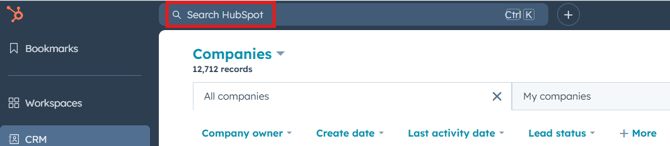
Click on the "Search bar" to search for existing companies.
-
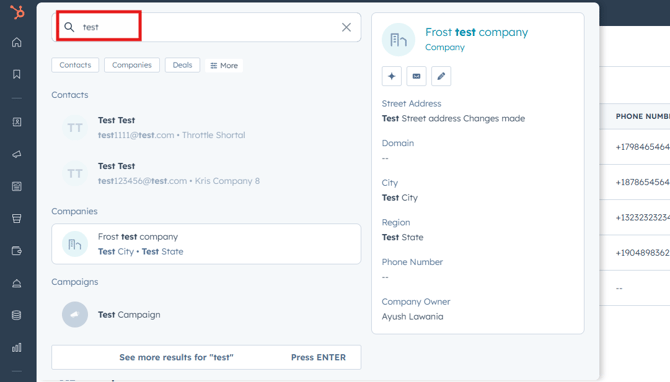
Clicking it will pull up recently searched results , start typing the name of the company you want to search for, this will generate results in real-time as you type, searching across all Objects.
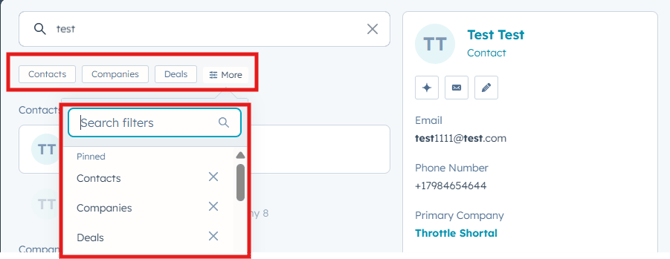
For a more targeted search, you have the option to refine your results by applying filters based on Academy, Calls, Claims, Companies, Contacts, Contracts, Deals, Email, Meetings, Notes and Tasks.
Search Company:
Company View:

All Companies: This view will display all the companies created in HubSpot.
My Companies: This view will display all the companies created by the current user.
Inactive/Terminated Status: This view displays all the inactive companies.
Frost Companies: This view will display all the companies under Frost pipeline.
How to add Frost Companies view
-
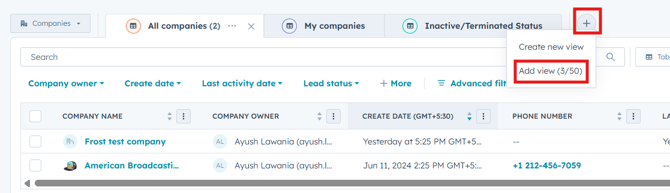
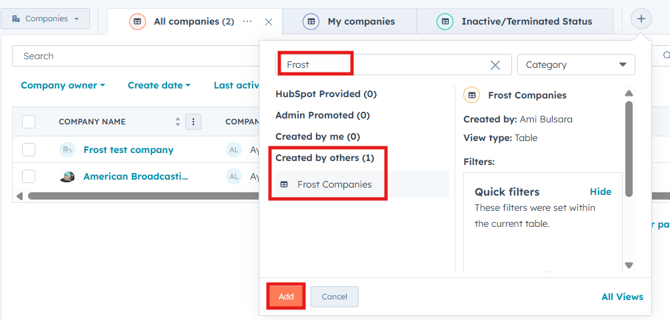
Go to CRM> Companies and click on “+(Plus)” icon and select Add View.
-
Search for “Frost Companies” or scroll down to find it in the created by others section and select it, click on Add to add this view to the main Company screen.
How to search for a Company/Credit Union
To search for a specific company record, navigate to CRM > Companies from the left sidebar navigation in HubSpot.
-
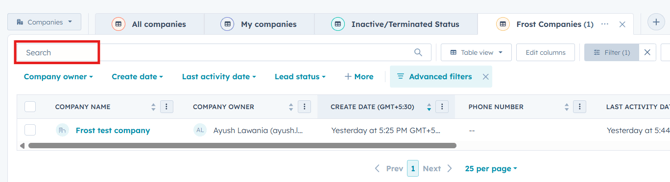
At the top left corner of the list, you will find a search bar.
-
Click inside the search bar to enable it.
-
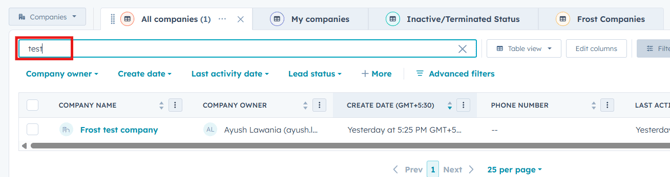
Enter your search query, you can search for the company by various criteria, such as company name, phone number, address, or domain.
Pro Tip: Enter the distinct part of the address and omit variations like "Highway" vs. "Hwy" or "Street" vs. "St" to ensure accuracy. -
As you enter your search query, HubSpot will start displaying results in real-time based on your search criteria.
Deals
How to Create a New Deal record
Best Practice: Deals should be created on the company record they are associated with.
-
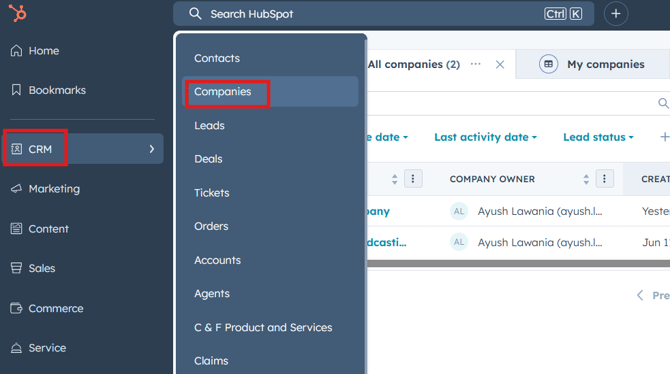
Go to CRM> Companies.
-
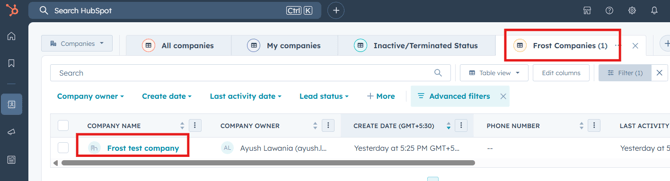
Select “Frost Companies” view and select the company or search for the company you would like to associate the deal with.
-
Select “+Add” in the deals section of the company.

-
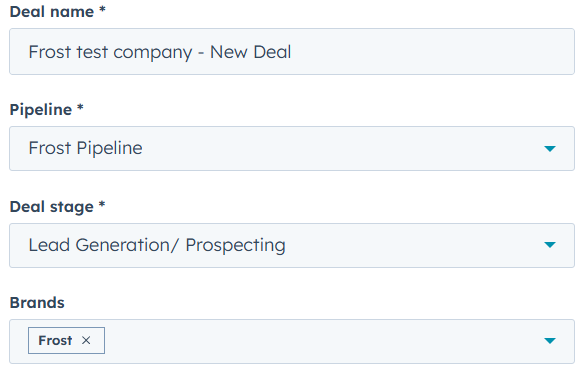
Populate Deal fields in the form and once entered click “Create” to create the deal or click on “Create and add another” to add more deals.
Note: The following fields are required to create and save a Deal; additional fields can be entered upon creating the product.-
Deal Name
-
Pipeline
-
Deal Stage
-
Brands
-
Deal Owner
-
Channel
-
Region
-
Acquisition Type
-
-
Deal Name: Update deal name here.
-
Pipeline: Will auto populate Frost Pipeline.
-
Deal Stage: By default “Lead Generation/ Prospecting” will auto populate, user can select other stages from the dropdown.
-
Brands: Will auto populate Frost.
-
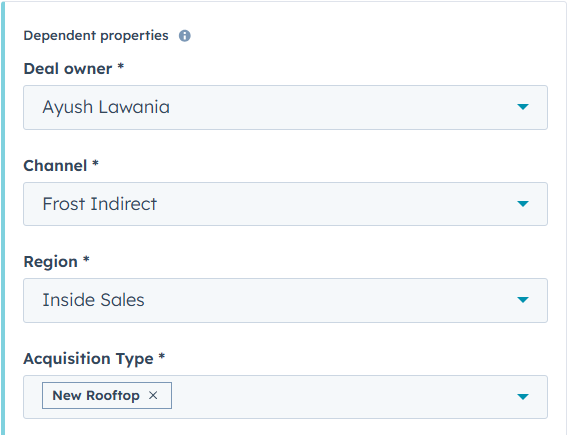
Dependent Properties: Fill out the dependent properties by selecting relevant options from the dropdown, this includes:
-
Deal Owner
-
Channel
-
Region
-
Acquisition Type
-
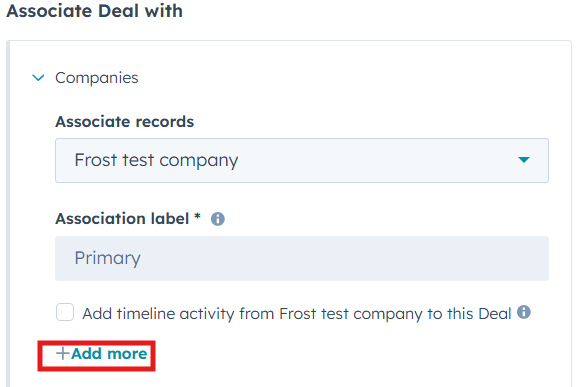
Associate deal with (This is optional, Company record must pre-exist in HubSpot)
Companies:
-
Associate records: By default, the current record is pre-populated.
Note: To establish an association between the deal and another existing record, the user may accomplish this by selecting the desired record from the available options within the dropdown menu. Click on “+Add more” to associate with multiple companies. -
Association label: “Primary” will auto populate.
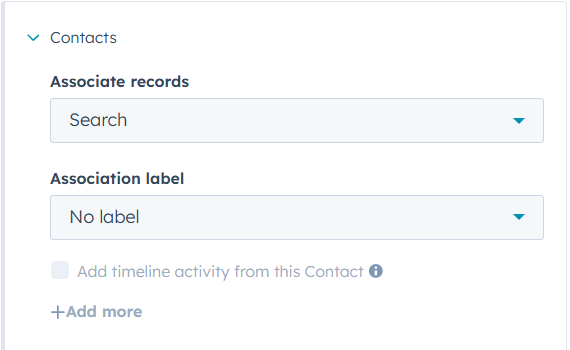
Contacts:
-
Associate records: User can associate existing contacts record using this dropdown.
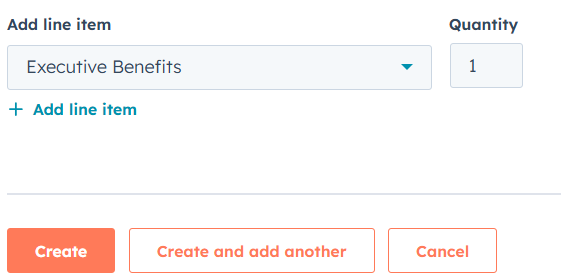
Add line item (Optional): Use this to add the products in the deal.
-
Select the products from the dropdown menu and enter the desired quantity of the product.
Note: Additional fields can be entered upon creating the deal.
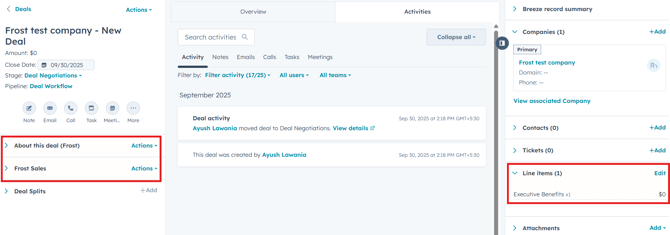
How to add new line item
To existing deal record:
-
Open the Deal record where you wish to add the product.
-
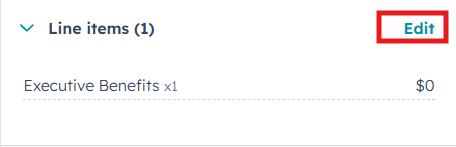
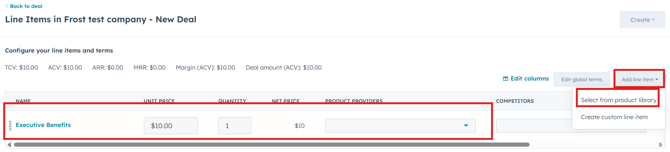
Select Add/Edit in Line items section of the record, this will redirect to a new page where you can add new products to the deal record.
-
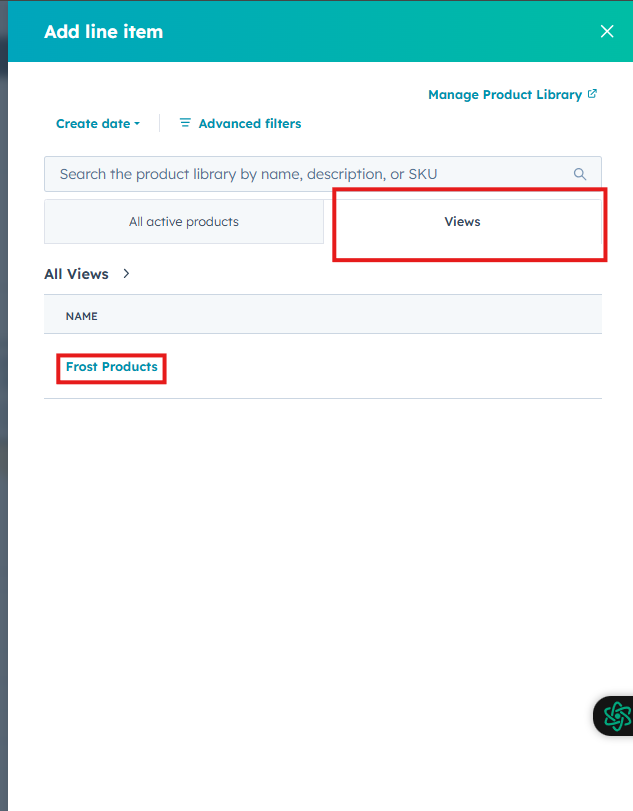
Edit the existing product or click on Add line item>Select from product list to choose products from the existing list.
-
Click on “views” then select “Frost”
-
Click Add after selecting the desired product.
Note: Its a multiselect field, user can select multiple products at once. -
Enter the desired Unit Price, Quantity, Product Providers and Competitors, click Save to update the products in deal record.
Note:-
Net Price is calculated based on Unit Price and Quantity.
-
TCV, ACV, ARR, MRR, Margin (ACV) and Deal Amount (ACV) is calculated automatically based on Unit Price and Quantity of all the added products.
-
Accessing and Updating existing deals
Deal View:
-
All Deals: This view displays all deals created within the Frost pipeline.
-
My Deals: This view displays all the deals created by the current user.
-
Change the view type by selecting the view from the view type field, this includes Table, Board, Gantt, Report and Calendar view.
How to search existing deals
-
Go to CRM>Deals.
-
Use the filter options to drill down to specific deals; and
-
Leverage drag and drop feature to update deal stage (for Board View).
-
Click anywhere outside the deal name to open the deal to the right of your screen and record updates.
-
Click the deal name to access the full record.
-
Additional References:
-


