![APCO Holdings Logo_CMYK (002)-1.png]](https://knowledgebase.apcoholdings.com/hs-fs/hubfs/APCO%20Holdings%20Logo_CMYK%20(002)-1.png?height=40&name=APCO%20Holdings%20Logo_CMYK%20(002)-1.png)
Never trust the XMLs that the Menu Provider sends you! Pull the XMLs from our server. Often times the Menus do not provide us with the correct XML.
There are two types of XML files you can pull.
Rating - These are the Gets Rates Request files and there can be multiple per VIN if multiple rating attempts or calls are made. The dealer/menu will pass the vehicle and finance information and we will return all possible terms and products the vehicle is eligible for. You will be looking into these if the dealer has a problem with a product or rate being returned.
Contracting - These are the SubmitContractRequest calls made. The dealer/menu will pass us the contract information - customer details, the specific product and term chosen, markup, vehicle details, etc - and we return the contract PDF. You will be looking into these if there is an error during contracting or the wrong information is on the contract.
The XMLs can be located here: \\az-vm-logfiles01-pr.apco.com\RatingAndContracting
If you’re looking for Rating - you’ll want to choose the RatingProcessingLogs folder.
If you’re looking for Contracting - you’ll want to choose the ContractProcessingLogs folder.
Finding the Correct XML
We always prefer to pull the XML from our system instead of using what the menu provided and finding the correct file can be a little tricky.
You can follow the below tips to help locate your XML.
Rating:
-
From file path, choose the type of XML you are looking for and then the year, month, and day of the request to open up all RatingLogs from that day.
-
If you do not know the exact day the request was made (and this is not always the sale date of the contract!) then you can use the Rate Request by VIN or Rate Request by Contract number script to find out what day the vehicle was rated. If a Menu is reporting the issue, you can narrow down your search to the Request From and Response to that specific menu provider. In these files, if you see Risktken - that’s TailLight/ECO making the request.

-
Locate the dealer number that you are looking for and narrow it down by menu if you are able to.
-
From here, open the Request_From files until you find the VIN that you are looking for.
-
Once you’ve located the Request_From File with the correct VIN, open the Response_To file below it. Make sure the number AFTER the dealer number matches. This is the Transaction ID. in the above example the dealer is 002718 and the Transaction ID is 130441171.
-
Keep both files open! These are the ones you’ll want to dive into.
-
Contracting:
-
These are a bit easier to locate than the Rating XMLs. You can get the day the contract was created from the Contract itself on PCRS.
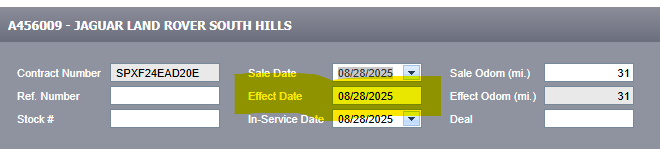
-
From there, Pick ContractProcessingLogs and then navigate to the correct year, month, and day of the file you are looking for.
-
Find the dealer number.
-
From here, look for the contract number you are looking for! YOU WILL NOT OPEN THIS FILE. Instead, open the Request_From file right above it! Make sure the Transaction IDs match! This Request_From File will be the one you want to look into.

You will need 7Zip on your computer to be able to open the zipped folders. If you do not have 7Zip, submit a ticket to IT to get it installed.
Reading the XMLs
What you’re looking for will depend on exactly what issue the dealer/menu/agent is reporting. These will get easier to dig through the more you do them. I’d recommend copying all the text in a file and pasting it into an XML Formatter here (Best XML Formatter and XML Beautifier ) to make it easier to read! Some XML files will open in a legible format in Notepad ++, you can try this first, if the format is not correct move on to the JF XML formatter.
Let’s take a look at a few scenarios.
You will need to look at the RatingLogs if the issue occurs during Rating. You will need to look at ContractProcessingLogs if the issue occurs during Contracting.
Dealer/Agent/Menu is reporting a product isn’t returning.
-
Start by following the normal Rating/Contracting Issue guide: Rating Issue Flow Chart
It’s possible you can figure out the issue without needing to pull the XMLs. -
If you do need to pull the XMLs, determine which day the Rate Request was made and open the corresponding file .
-
The first thing you’re going to look for is <Program> - this signals the start of rates for a given product.
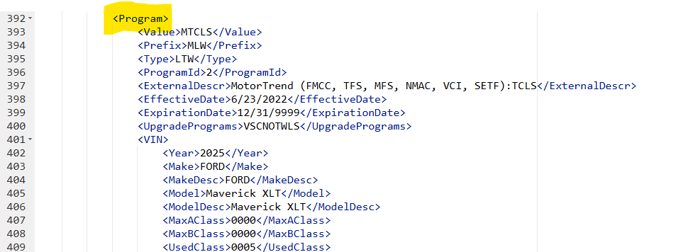
-
Let’s breakdown the information in the screenshot above.
Prefix: This is the prefix for the contract number. EX - MLWXXXXX.
Type: The type of Product. In this case, LTW is a Limited Warranty.
ExternalDescr: A description of the program and also the ECO form description. In this case, Motortrend Lender Specific.
UpgradePrograms: If this is an upgrade attached to this product, this will tell you witch. This MotorTrend Limited Warranty can be upgraded to the VSC No Tire and Wheel product. In this case the VSCNOTWLS is the ECO form number of the VSC upgrade product.
Under Program, you’ll find <VIN>. This will show you the decoded VIN information, as well as the class it returned for this product. -
If the dealer/agent/menu is reporting that a specific product isn’t returning, you’ll want to CTRL+F for <Program> and check each product listed under each instance. Don’t see it? Is the dealer enrolled on that product?
Dealer/Agent/Menu is reporting that a term/coverage/deductible isn’t returning.
-
Follow the first three steps listed in the scenario above. Once you’ve located the correct <Program>/Product that you are looking for, it’s time to take it one step further.
-
If the Program/Product has a coverage level (Stated, Total, etc), you’ll check for that first. This should be nested under the <VIN> information under the <Program>. You’ll look for <Coverage Code=. Next, you’ll look for the correct deductible (Deductible Sur = )Then, do the following with Term Months (TMonths= ) and Miles (TMiles=). NewUsed indicates if the vehicle is New or Used. If the indicator is an M it’s New/Max Miles. U would indicate used, T would indicate Time based.
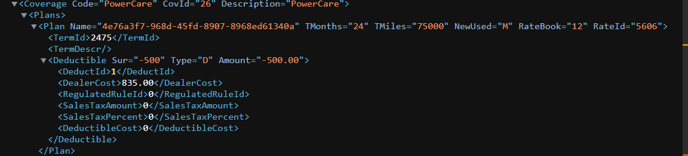
-
If the term/coverage/deductible is missing -
-
Does the dealership have any restrictions on terms/mile bands, coverage, deductibles? You’ll need to confirm this with Seller Set Up if there are any Partner Filters or Rate Options applied to this dealer and product. EX - the dealership can not sell contracts on vehicles with over 100k miles or dealer can’t offer terms greater than 60 months.
-
If it’s verified the dealer has no filters or rate options applied:
-
Verify on another dealer in another dealer group on same product if the term returns.
-
If it returns for this dealer escalate the issue to have the dealer in question examined more closely. Escalation should be to Tier 1 first.
-
If it does not return for the other dealer, escalate to have the product examined as the issue is more than likely a product level and not dealer setup issue. Escalation in this scenario would go straight to Product Implementation support ticket.
-
-
-
Dealer/Agent/Menu is reporting that the cost of the contract is wrong.
-
Follow the first step in the scenario above. Locate the correct <Program>/Product and the correct <CoverageCode= and <TMonths= and <TMiles=.
-
Is the reported <DealerCost> what the Dealer/Agent/Menu is expecting? If not, do you see the expected cost listed anywhere else? Ctrl + F and look for the amount that is being reported.
Note: For amounts over $1000, it does not appear with a comma. EX: A cost of $1,500 would appear in the XML as 1500.00.
3. If yes, this may be user error and the Dealer is selecting the wrong coverage/term/deductible.
4. If No, verify cost returned in the rate request and compare to cost in the contracting request/response. Verify both have the same criteria. If you do see a cost difference between was was returned in the rate request compared to what was submitted escalate to Tier 1. There could be a possible configuration issue with the dealers rate setup where something is not calculating correctly.
Dealer/Agent/Menu is reporting that the wrong information is printing on the contract.
-
For this scenario, we’re going to want to look at the ContractProcessingLogs.
-
Navigate to the correct Contract request that you are looking for.
-
This is the customer/vehicle information provided to us and the term that was selected.
-
If you see the incorrect information listed in this request, the wrong information was passed to us at time of contracting.
-
If you see the correct information in the contract request, verify it is in the correct fields
-
First Name is in the First Name node of the xml request
-
If the first name is not in the first name node, report back to the menu/dealer/agent that the information was passed to us in the incorrect location in the xml. provide the example and advise which node the information should have been passed over in.
-
If the information is in the correct nodes in the xml but is printing on the contract in the incorrect location or is not printing at all, escalate by submitting a ticket to Product Implementation.
-