![APCO Holdings Logo_CMYK (002)-1.png]](https://knowledgebase.apcoholdings.com/hs-fs/hubfs/APCO%20Holdings%20Logo_CMYK%20(002)-1.png?height=40&name=APCO%20Holdings%20Logo_CMYK%20(002)-1.png)
These articles serve as a comprehensive guide and quick reference for navigating HubSpot. If you're looking for articles tailored to your specific role, check out the Categories available on the Knowledge Base home page.
Create Dashboards
Dashboards provide a convenient way to group all the data you need to quickly see how you and your team are performing, as well as how your marketing efforts are progressing. Even if you haven't created your own reports, HubSpot offers Templates and plug-in filters and graphics to help get you started.
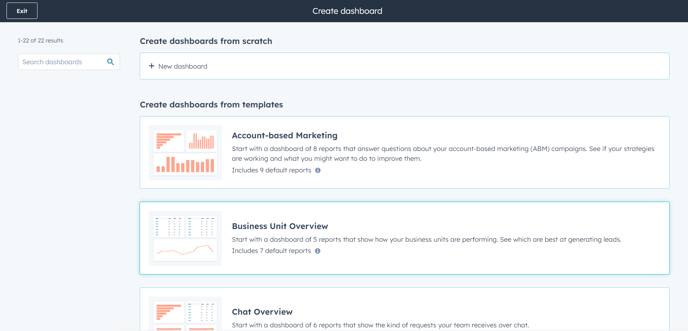
To create a dashboard, navigate to Reporting & Data > Dashboards and click "Create dashboard" in the upper-right side of your window.
Using Templates
- Choose the template that best suits your needs to kickstart your dashboard creation process.
- In the right panel, carefully review the suggested Template reports. Deselect the checkboxes next to any reports that you do not wish to include in your dashboard.
- Click Next.
From Scratch
- Click the "+ New dashboard" under the "Create dashboard from scratch" section at the top.
- In the right panel, enter Dashboard name.
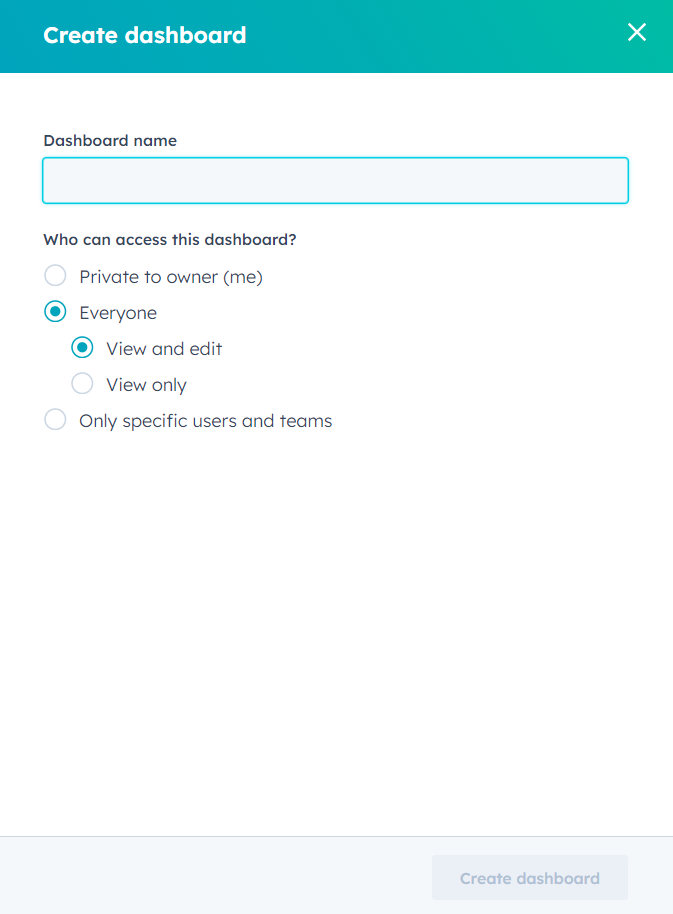
- Select access permission for that particular Dashboard.
- Private to owner: allow only you and admins to view and edit the dashboard. A super admin can only select this if they are the owner of the dashboard.
- Everyone: allow all users in your HubSpot account to view the dashboard.
- Select View and Edit to allow all users to view and edit the dashboard.
- Select View only to allow all users to view, but not edit, the dashboard.
- Only specific users and teams (enterprise only): Allow specific users and teams in your HubSpot account to view the dashboard.
- Select View and Edit to allow specific users to view and edit the dashboard. Click Next in the bottom right and select the users and teams that will have view and edit access to the dashboard.
- Choose "View only" to grant specific users permission to view the dashboard without being able to make any edits. Click Next in the bottom right corner and select the users and teams that will have access to the dashboard.
- Click Create dashboard.
- Once you have created the dashboard, exit the dashboard creator and begin adding reports and customizing its appearance. Further details on customizing dashboards can be found in the next article.
You can easily share your dashboards, just like reports, with specific users by setting up an email schedule. Simply click on the Share button at the top of your window. Any filters applied by a user will be reflected in how the dashboard is viewed by other users.
Manage Dashboards
Links on Dashboards
From the Reporting & Data > Dashboards page, You will either be presented with a default dashboard selected for your team or prompted to search from the drop-down menu at the top-left corner.
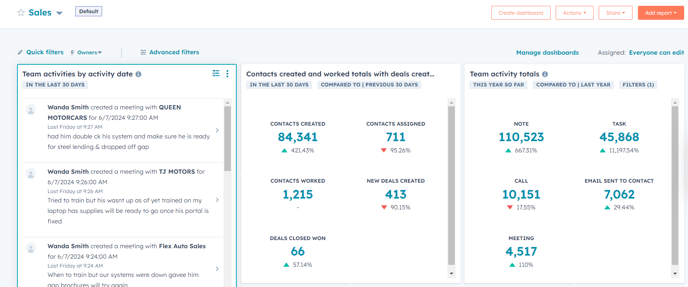
Above the Dashboard, you will find the following options:
- Quick Filters: To simplify the process of quickly viewing all the Reports in a Dashboard at a glance, you have the option to select specific Properties (fields) to pin at the top. This allows you to easily pivot between different Data Sources, such as Contacts and Companies, to swiftly narrow down the results shown in the Reports included in the Dashboard.
- Advanced Filters: If you haven't set up a Quick Filter, you can manually search and refine the results of the reports in your dashboard by filtering based on properties (fields) from the data sources throughout the dashboard.
Avoid editing dashboards and accidentally overwriting someone else's hard work. Any changes made while viewing a dashboard are automatically saved for the next user. If you need to make adjustments to a shared dashboard , consider cloning it first (covered in the next section) to ensure you are making the necessary changes without affecting the original content.
- Assigned: To see who has the access to View and Edit your Dashboard and make changes if needed.
Note: Admins and other super users will have access to each Dashboard regardless of this setting.
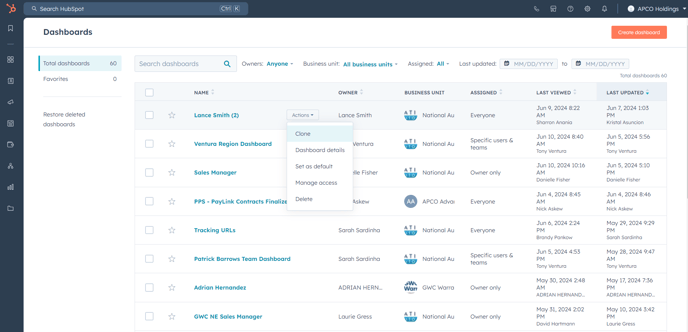
- Manage Dashboards: Navigating to this option will lead you to a comprehensive and filterable list of Dashboards that are accessible to you. Here, you will find all the necessary details and actions that you may need to perform on these Dashboards.
Actions on Dashboards
The Actions dropdown in the top-right of the window has the following options:
- Clone: If you find a Dashboard that you like but want to customize it to fit your needs, such as removing certain reports or adjusting how they are displayed, you can make a copy of the Dashboard to edit and save separately.
- Dashboard details: It's always a good idea to have a Description on Reports or Dashboards you create so that others know what you're showing. If you're setting up a Dashboard for your team, you may also consider changing the Owner so that any user-specific filters on the Reports, e.g. "My Team's Deals", are consistent for everyone viewing it.
- Activity Log: A quick way to check if your Dashboard has been edited recently.
- Set as default: If you want to skip the hassle of searching for your favourite dashboard, you can set a particular dashboard to pull up when you navigate to Reporting & Data > Dashboards.
To easily access your most used dashboards, simply click on the star icon located to the left of the Dashboard Name at the top of the window. By adding dashboards to your Favorites, they will be organized into a separate list for quick and convenient retrieval from the full list of dashboards available to you. This makes it simpler to locate them when needed in the future.