![APCO Holdings Logo_CMYK (002)-1.png]](https://knowledgebase.apcoholdings.com/hs-fs/hubfs/APCO%20Holdings%20Logo_CMYK%20(002)-1.png?height=40&name=APCO%20Holdings%20Logo_CMYK%20(002)-1.png)
TABLE OF CONTENTS:
- Check Account Selected on Mobile
Check Account Selected
Before logging a meeting, ensure that you are on the APCO Holdings Production Account, not the Sandbox Account - Users have reported that it will default to the Sandbox account upon the first log in. Once it is switched, it will stick to the Production account until logged out.
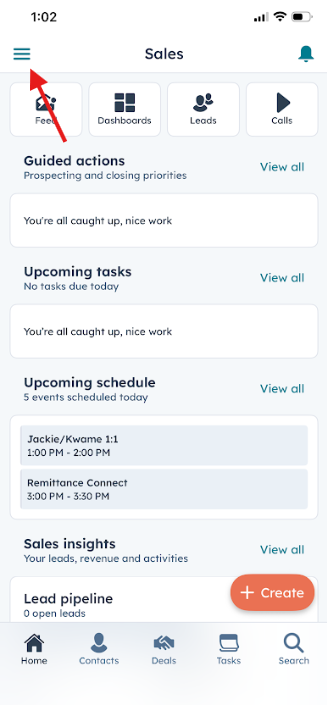
To check which account you are on, open the mobile app and click on the hamburger menu in the top left. Ensure it says "APCO Holdings" and not APCO Holdings - Sandbox".
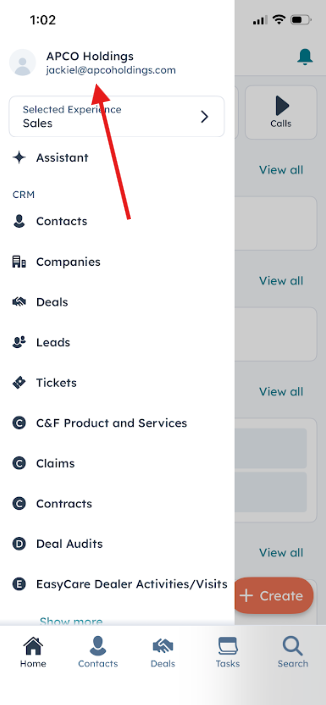
If it does say "APCO Holdings - Sandbox" click on the account name, and click on "account" where you can swap to the "APCO Holdings" version.
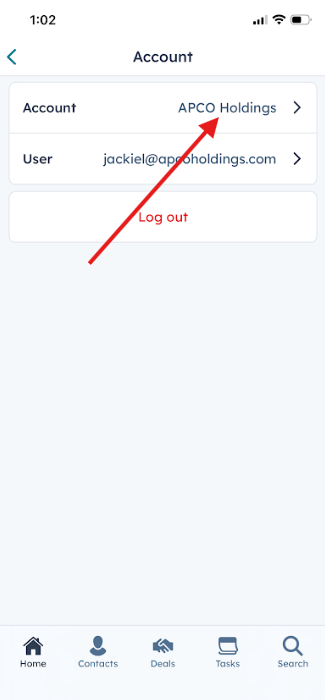
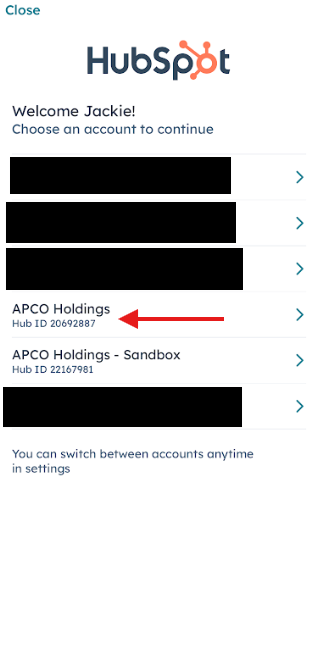
Once you confirm you are in the APCO Holdings Production account, you're ready to log a meeting.
*NOTE* You may have to check the account if you are logged out on the app again.
Log a Meeting
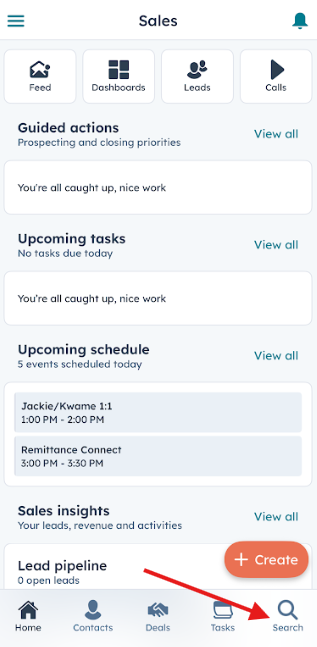
Navigate to the company record you want to log the meeting on. You can do this by using the "search function" in the bottom right of the app. If the company does not exist, you can click on "+ Create" to create a new one. Always be sure to search first before creating a new record.

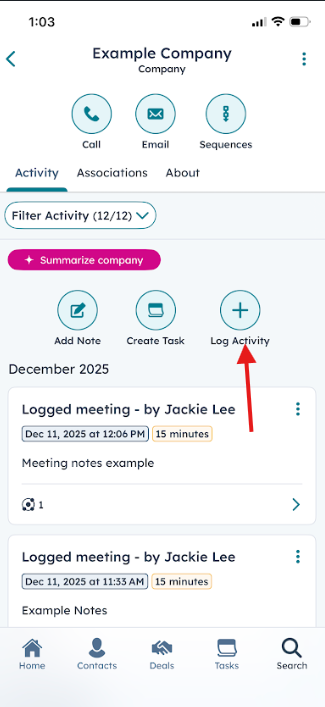
Once you are on the company record, click "log activity."
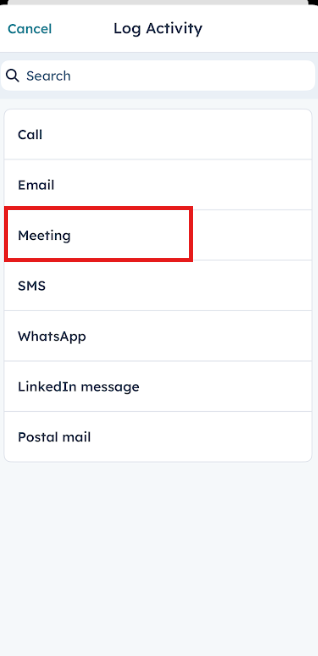
Select "Meeting." Fill out the details of the meeting, ensuring that you are selecting a meeting type that corresponds to your meeting. Click "Save" to log the meeting.

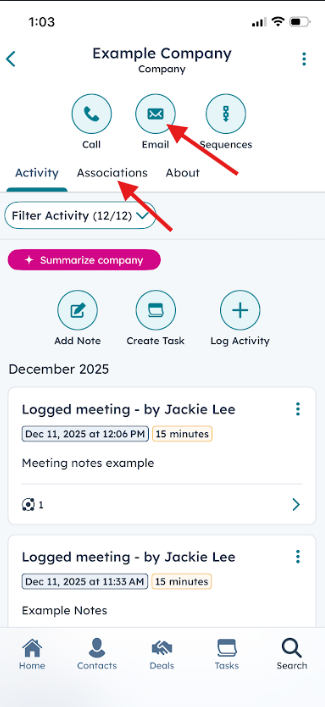
Your meeting will then be logged in the company record. You also send a follow-up email by clicking "email" in the top middle.
**NOTE** There must be a contact associated with the company record to send an email from the company record on Mobile. You can do this by clicking on the "associations" tab.