![APCO Holdings Logo_CMYK (002)-1.png]](https://knowledgebase.apcoholdings.com/hs-fs/hubfs/APCO%20Holdings%20Logo_CMYK%20(002)-1.png?height=40&name=APCO%20Holdings%20Logo_CMYK%20(002)-1.png)
These articles serve as a comprehensive guide and quick reference for navigating HubSpot. If you're looking for articles tailored to your specific role, check out the Categories available on the Knowledge Base home page.
Table of Contents:
Connect Your Corporate Email to HubSpot
While using HubSpot to access and manage your customer's information, you may find yourself switching back and forth between your Email app to send or save emails for attachment in HubSpot. Why not streamline the process by sending emails directly from your Corporate Email account within HubSpot? To do so, follow below instructions:
- Click on profile icon at the top-right side of your window and click Profile & Preferences.
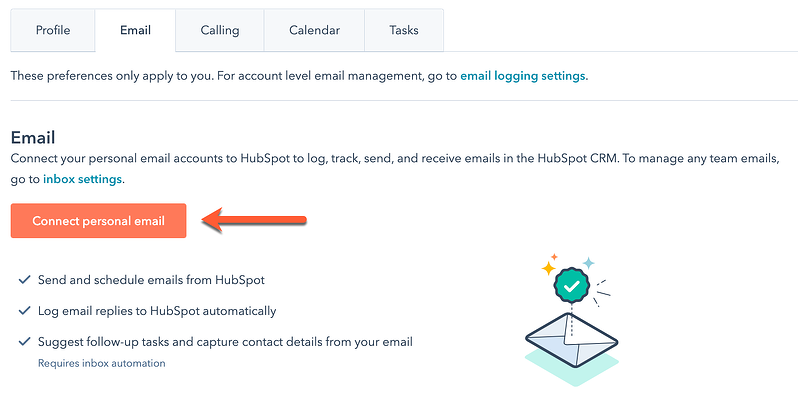
- This will automatically bring you to your General Preferences, which is located under the Profile tab by default. Simply click on the Email tab located right next to it.
- Click Connect Email and choose your Corporate Email account.
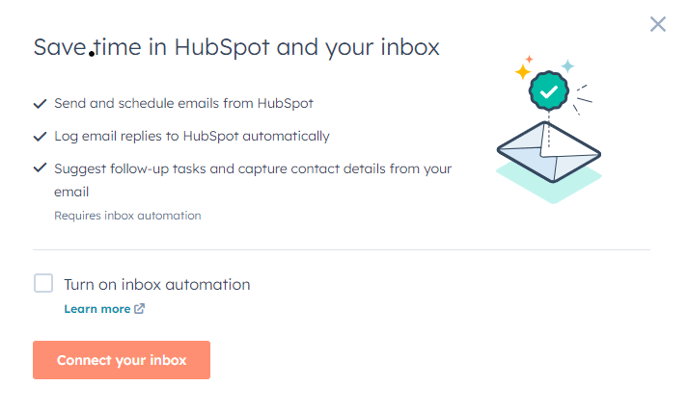
- Click Connect your inbox.
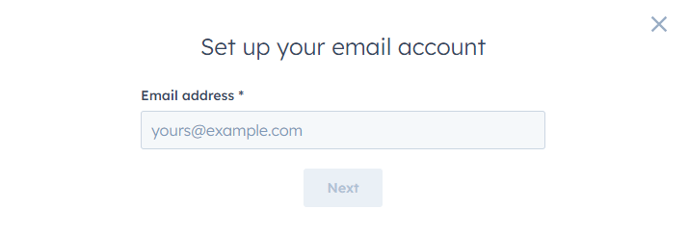
- Enter your email address into the designated text field.
-
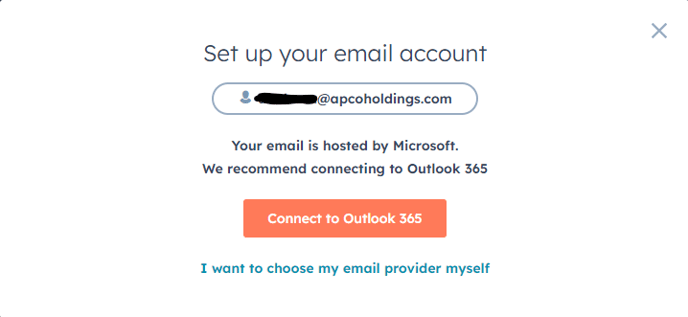
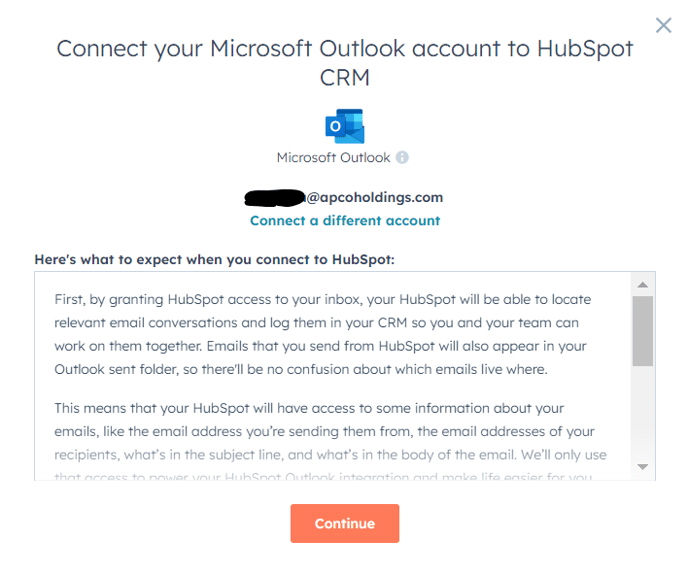
HubSpot will suggest the email provider you should connect with. Simply click on "Connect to [recommended provider]" and follow the steps for your specific provider to complete the connection of your personal email.
-
Click Connect to Microsoft Outlook to finish connecting your Email.
Connect Your Corporate Calendar to HubSpot
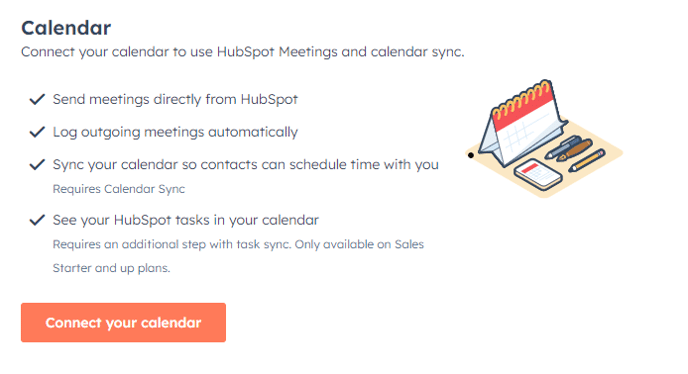
- On the same General Preferences page, click the Calendar tab.
- Click "Connect Your Calendar" and confirm your Corporate Email account.
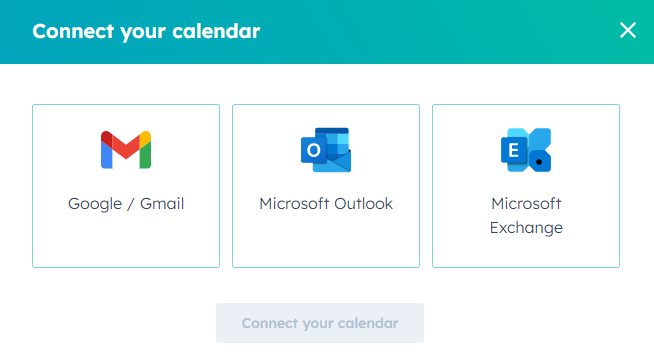
- In the dialog box, click Google, Gmail or Office 365 based on your preference and then click Connect your calendar.
- Review the information in the dialog box, then click Accept and connect to [Google/Office 365] to give the meeting tool access to your calendar.
-
- On the Google sign-in page, select the account you want to connect to, then review the permissions. Click on "Allow" to proceed with connecting your calendar.
- On the Office 365 sign-in page, ensure you're signed in to the correct account and review the permissions. Click "Yes" to proceed with connecting your calendar.
-
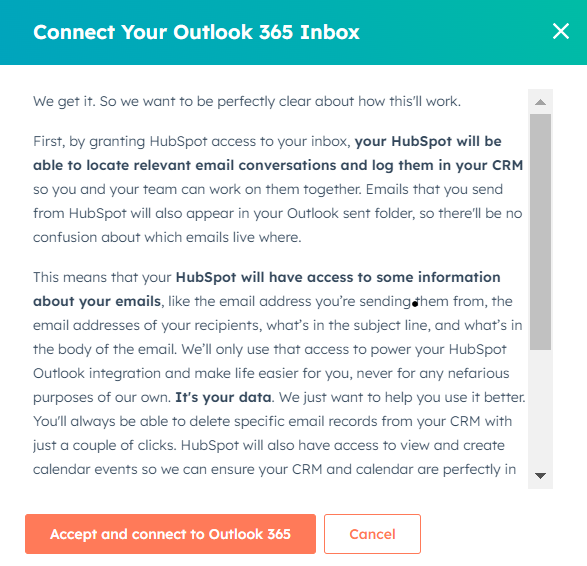
Necessary disclosure: HubSpot will have access to both your Google Calendar and any other calendar you access via Google in order to power the meetings tool, and allow you to associate events with contacts in the CRM. HubSpot will have the ability to create or change your calendars, and update individual calendar events.
As a bonus, you can now see this on your Tasks Index Page in the right panel and you'll be able to schedule meetings with your Contacts from their Record while viewing your availability.