![APCO Holdings Logo_CMYK (002)-1.png]](https://knowledgebase.apcoholdings.com/hs-fs/hubfs/APCO%20Holdings%20Logo_CMYK%20(002)-1.png?height=40&name=APCO%20Holdings%20Logo_CMYK%20(002)-1.png)
These articles serve as a comprehensive guide and quick reference for navigating HubSpot. If you're looking for articles tailored to your specific role, check out the Categories available on the Knowledge Base home page.
Note: Before setting up a new account, be sure to search the platform for any existing accounts to avoid duplication.
Table of Contents:
Universal Search
Click on the "Search bar" to search for existing companies.  Clicking it will pull up "Recently searched Results" , start typing the name of the company you want to search for, this will generate results in real-time as you type, searching across all Objects, e.g. a Customer Jones Deal alongside a Customer Jones Contact.

Search Company
To search for a specific company record, navigate to CRM > Companies from the left sidebar navigation in HubSpot.
- At the top left corner of the list, you will find a search bar.
- Click inside the search bar to enable it.
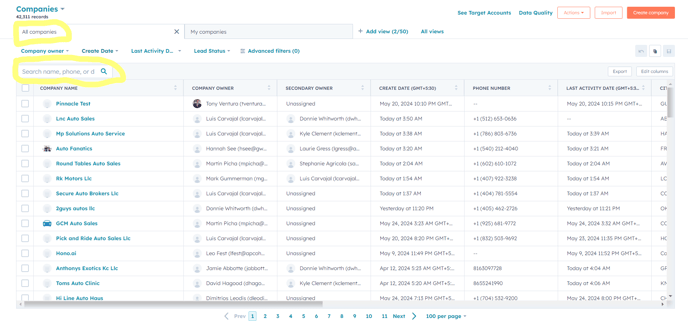
- Enter your search query, you can search for the company by various criteria, such as company name, phone number, address, or domain.
Pro Tip: Enter the distinct part of the address and omit variations like "Highway" vs. "Hwy" or "Street" vs. "St" to ensure accuracy. - As you enter your search query, HubSpot will start displaying results in real-time based on your search criteria.
Create Company
Note: We do not have stringent duplicate prevention rules in place (only verifying if the domain is currently in use) so it is important to check if a record already exists before creating a new one to avoid ownership confusion and provide the fullest detail and history.
- In your HubSpot account, navigate to CRM > Companies from the left sidebar navigation in HubSpot.
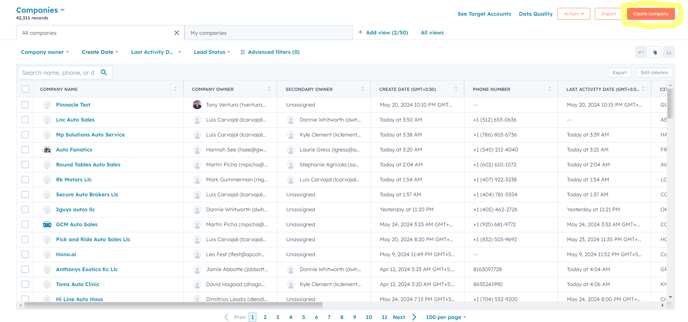
- Click on "Create company" button at the top right corner to create new company record.
-
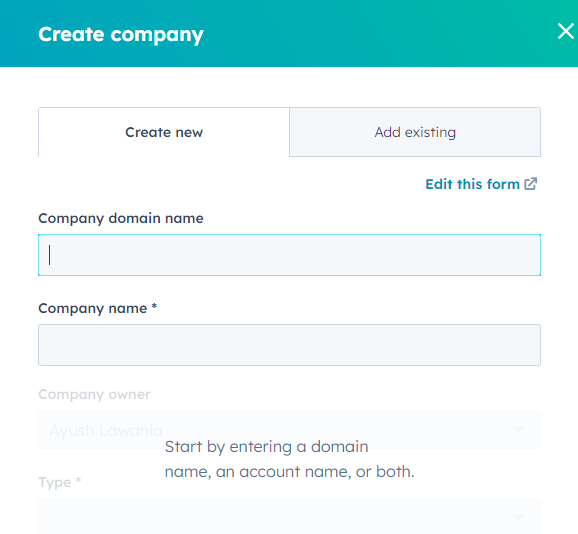
A form will pop up over the right side of your window where you can enter Company's information.
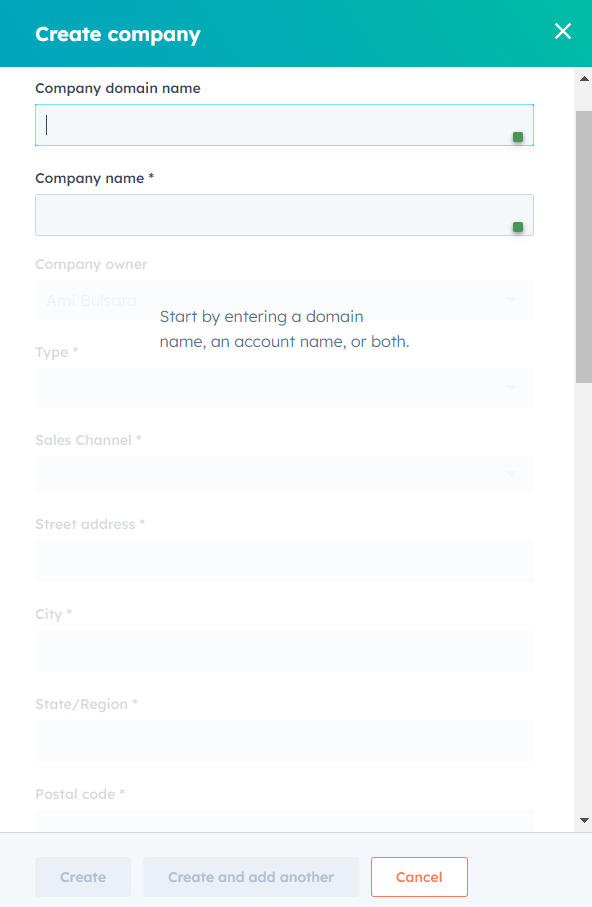
- Enter Company domain name (HubSpot checks for duplicate record) and Company name. Upon entering, all account fields will become accessible. All fields marked with an asterisk * must be filled in when creating a company to:
- To avoid creation of duplicate accounts.
- To ensure accurate deal mapping.
- To safeguard against reporting and data errors.
Note: Ensure that you provide the complete address when creating a new company record, as this is the primary method used to determine if the company already exists in the system.
- Finish creating the record by clicking "Create" at the bottom of the form.
Add Associations from the Company record
After creating the record, one can associate an existing company or create a new company to associate with the Company record.
- In the right panel of the Record's page, one can see expandable lists of Associated Records and a link to "+Add" new Associations.
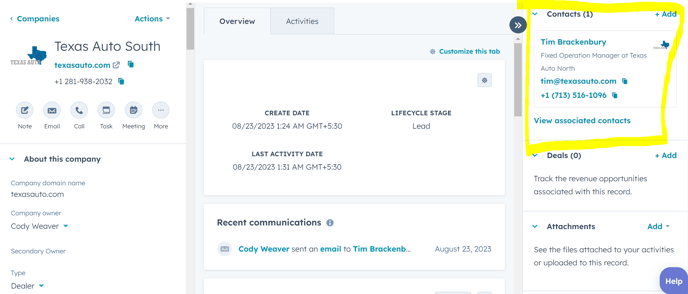
- Clicking "+Add" under one of these sections prompts you to either create a New Associated Record or Add the Company's Association to an Existing Record.
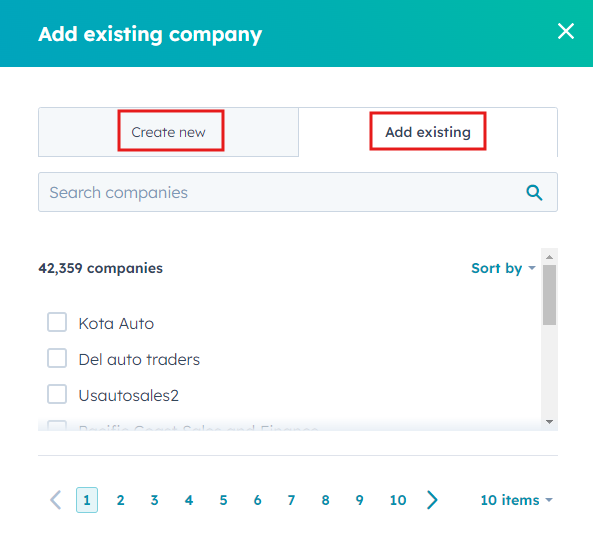
- Search for existing company using the search box.
- Click on "Create new" and fill the details to create and associate new company.