![APCO Holdings Logo_CMYK (002)-1.png]](https://knowledgebase.apcoholdings.com/hs-fs/hubfs/APCO%20Holdings%20Logo_CMYK%20(002)-1.png?height=40&name=APCO%20Holdings%20Logo_CMYK%20(002)-1.png)
These articles serve as a comprehensive guide and quick reference for navigating HubSpot. If you're looking for articles tailored to your specific role, check out the Categories available on the Knowledge Base home page.
Table of Contents:
In HubSpot, certain activities are logged on records automatically, but you can also manually create new calls, emails, meetings, and messages, or log activities that occurred outside of HubSpot (e.g., a meeting with a client that wasn't booked, or a message sent via LinkedIn).
Activities include:
- Calls
- Emails
- Meetings
- Notes
- LinkedIn messages
- WhatsApp messages
- SMS
- Postal mail
- Contacts
- Companies
- Deals
- Tickets
- Custom objects
From the Record's Page
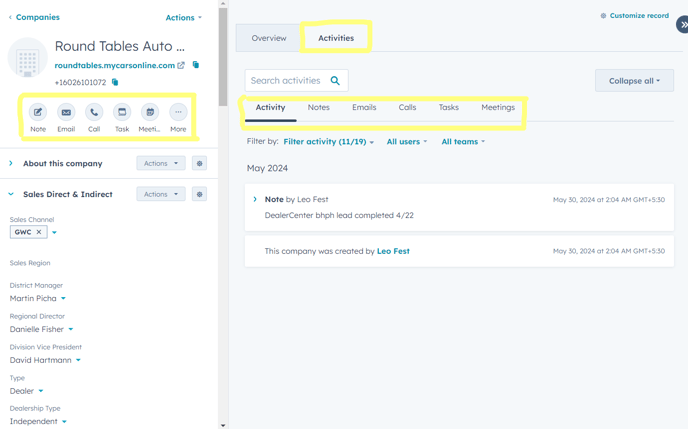
Activities are organized in the central section of the record's page, displaying all activities initially. You can further explore specific activities by clicking on tabs such as Notes, Emails, Calls, Tasks, and Meetings. To get a quick overview of recent activities and deals related to a company, click on the "Overview" tab at the top of the page.
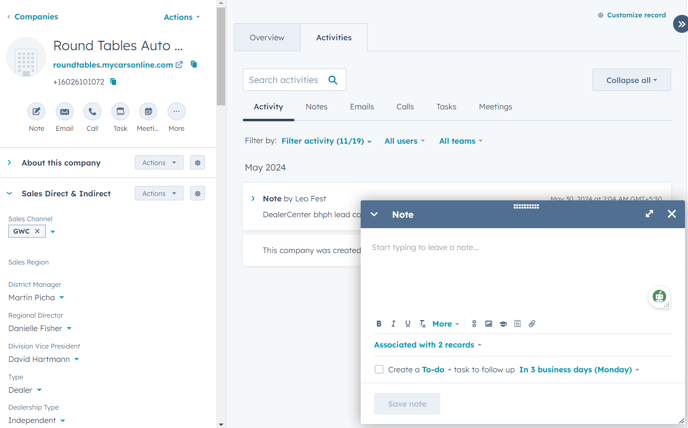
Create a Note
Utilize Notes for internal communication, whether it be tagging (Use "@" to tag your teammates) other users or to log information on a record.
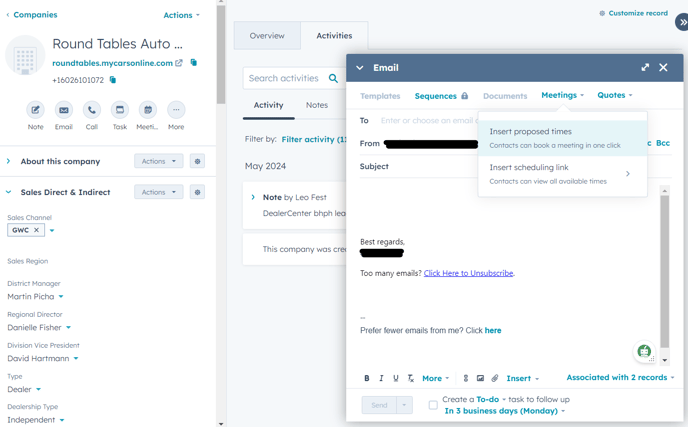
Create or Log an Email
For more information on connecting your email to HubSpot, please see this article.
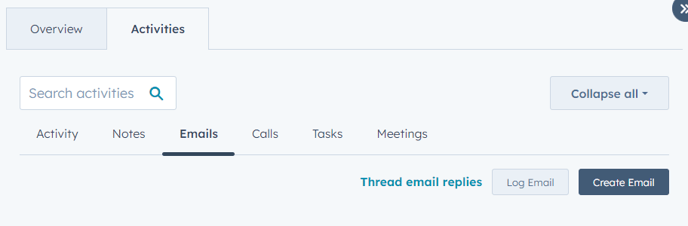
You can draft and send an email directly from the HubSpot record, associating it with the Associated records (e.g. from the Contact it will also log on the Company). You can propose Meeting times or give them access to your calendar to set up a Meeting by clicking the Meetings tab within the Email window, attach any Associated Quotes, and then click "Send and Complete Task" to log in to the record. Additionally, next to the "Create Email" button, you can choose to "Log Email" with a brief description of the correspondence or attach relevant information.
Make or Log a Call
If you want to call a Contact directly from the record, you can click on "Make a Phone Call" if you have access to our call agent. Otherwise, you can click on "Log Call" to quickly describe the communication (whether inbound or outbound) and easily set up a Follow-up Task, which defaults to 3 business days later..

Create a Task
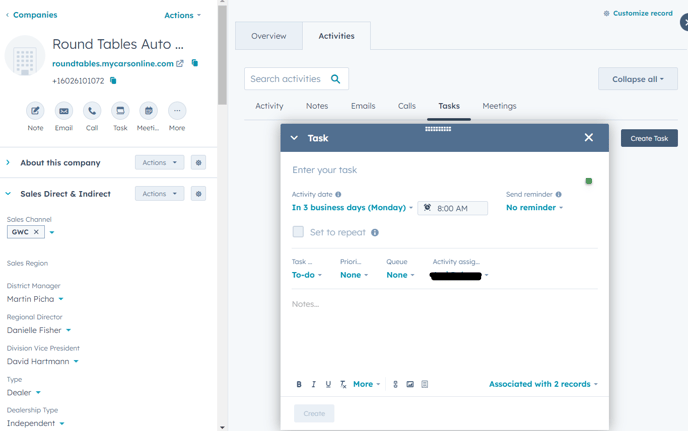
A lot of Tasks will be automatically assigned to you, but you can set your own by clicking the "Create Task" button which prompts you to schedule a time to send an email, call, or just check on the record or assign it to a Queue, if necessary.
Create or Log a Meeting
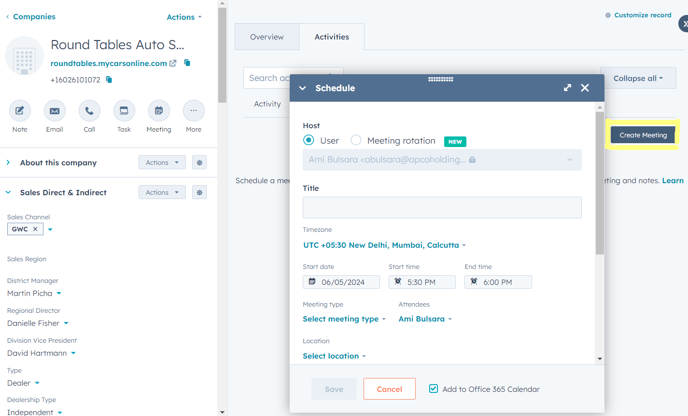
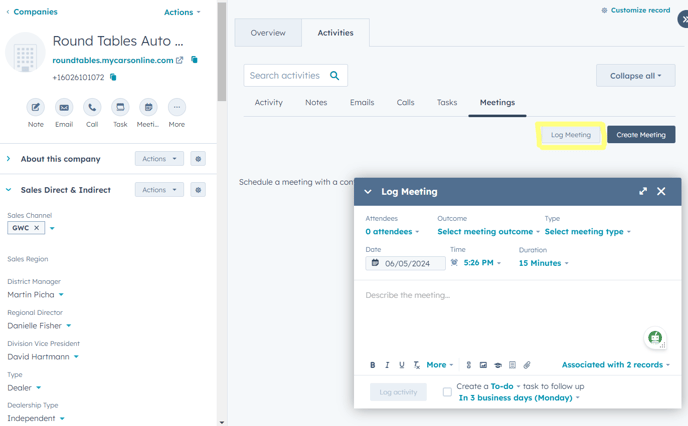
Lastly, when you click on "Create Meeting" under the Meetings tab (if your calendar is connected), a calendar view will appear to help you schedule, title, add attendees, and provide a description for a new meeting. Alternatively, you can simply click on "Log Meeting" to quickly add a description for a meeting that has already taken place.
From the Object's Index Page
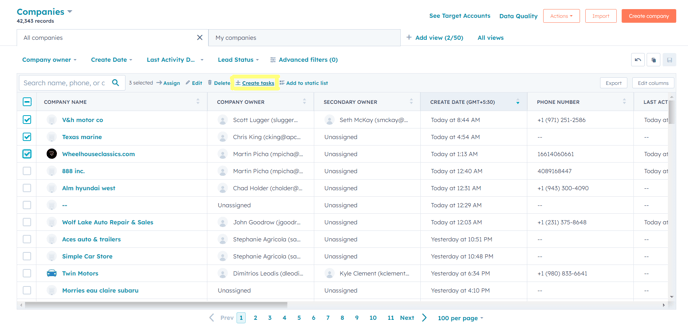
You might find it useful to create a Task directly from your List View for Tasks you're working from but you can also create Tasks from any Object's (e.g. Companies or Contacts) Index Page by clicking the checkbox next to the records you want to create them for and clicking "Create tasks". Each will be associated with the records selected though the details of each will be duplicated.